
Couch-ready PC gaming.
Just play.
Open Big Picture or any fullscreen game and Couchpit handles the chores: sound, screens, notifications, background apps. Your gamepad drives Windows, and non-Xbox pads work in Xbox-only games. Quit and your PC is yours again.
How it works
There is no button to press. Couchpit notices when you start playing and when you stop.
-
Open a game or Big Picture
From Steam, any other store or the desktop. Couchpit spots it on its own.
-
Couchpit sets the PC up
Sound, screens, notifications and background apps get ready, and the pad goes to the game.
-
Quit and it all goes back
Your desktop, your sound and your apps come back exactly as you left them.
What Couchpit does
Click any image to see it full size.
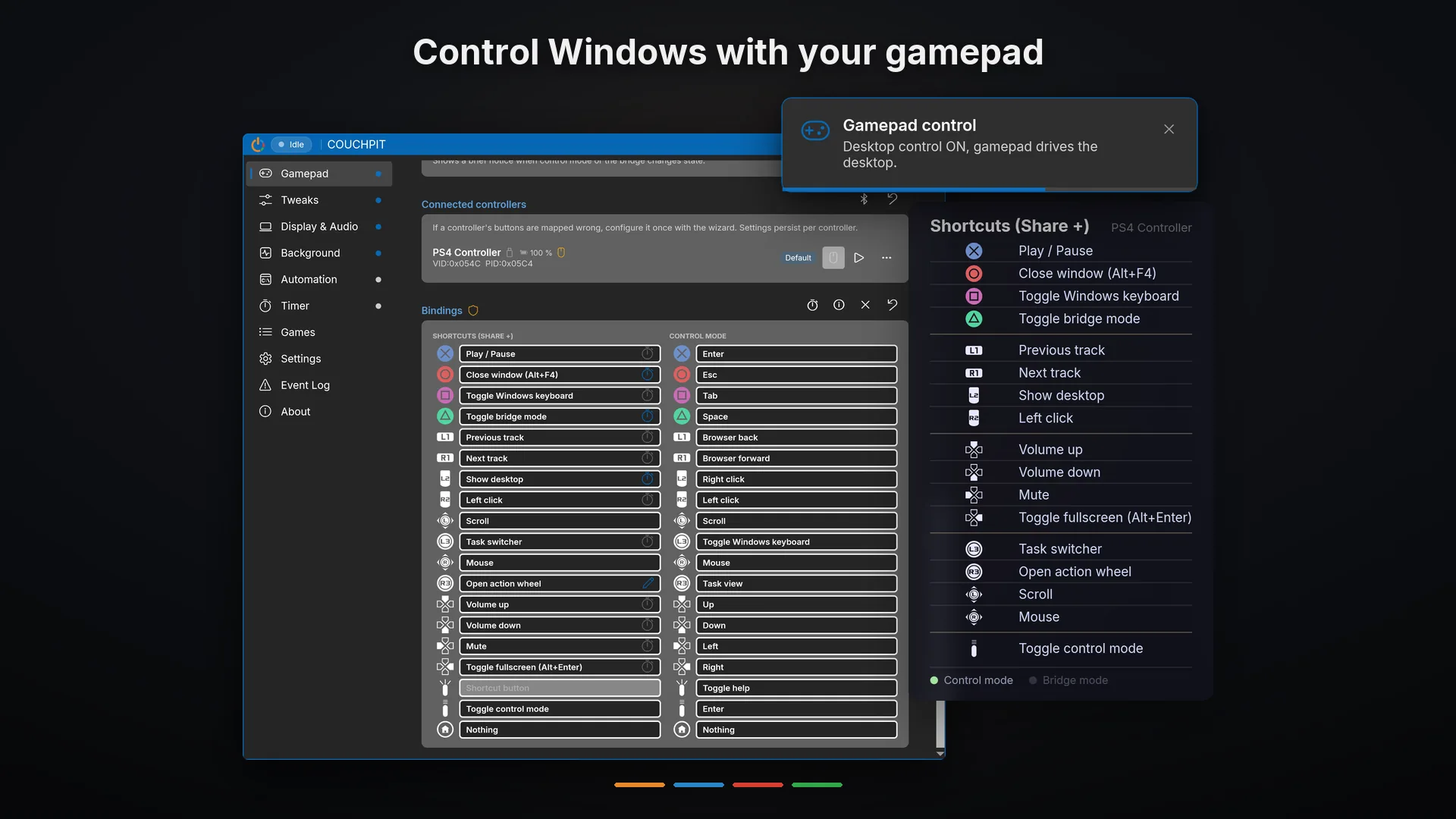
Your gamepad drives Windows
Cursor, clicks, scrolling and keys, all from the couch, with no keyboard on your lap.
- Two layouts ready: a classic one, and one that mirrors Steam Deck and ROG Ally desktop mode. Remap anything, globally or per game.
- Hold Back and the buttons become shortcuts: typing, volume, media, closing windows.
- Tap Back and a cheat sheet with every shortcut appears on screen. Or print the quick reference.
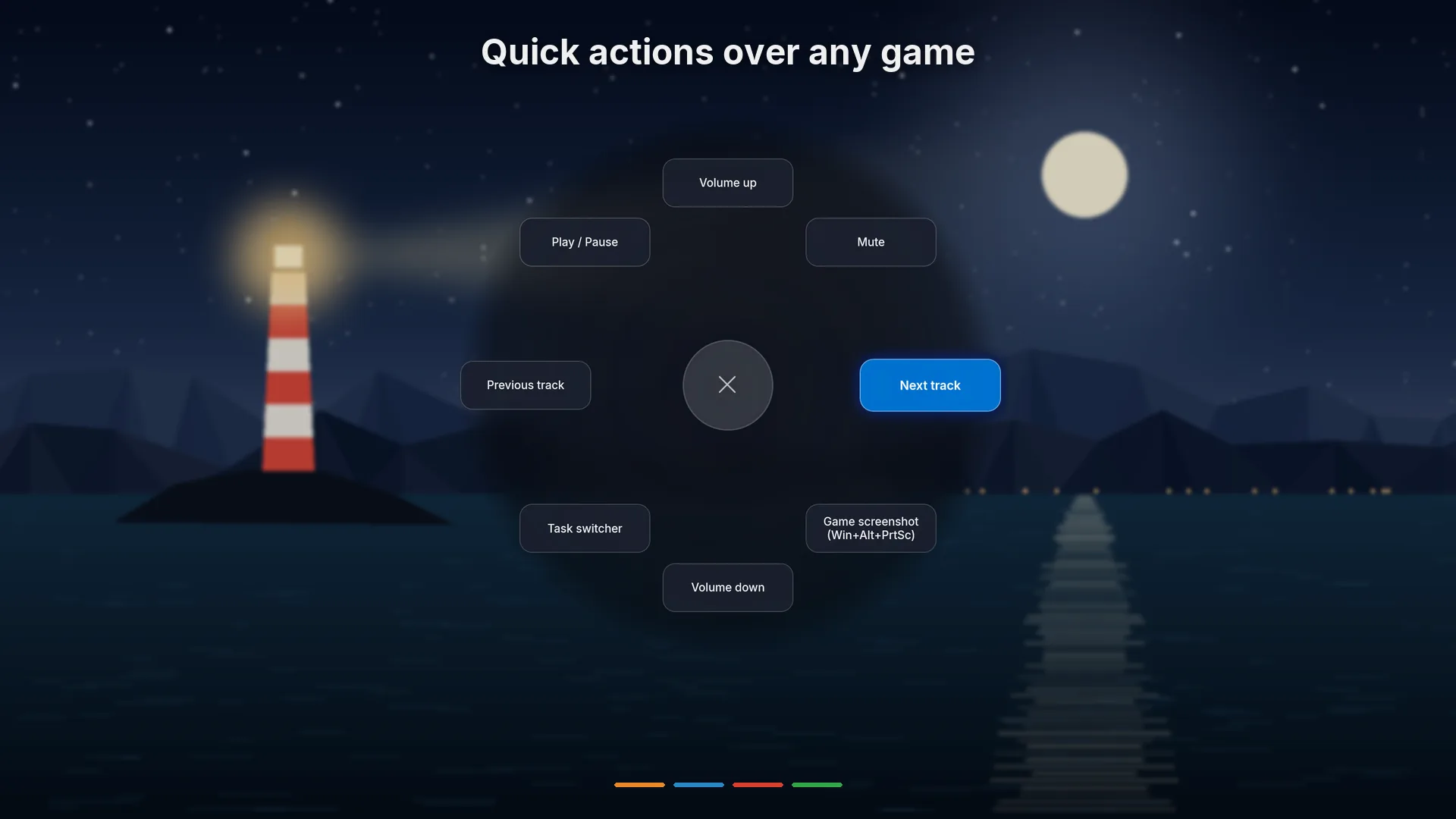
Quick actions over any game
A button combo opens a wheel over the game. Flick the stick and it is done.
- Volume, tracks, screenshots and switching apps, one flick away.
- Put the sound output switch on a slot and send the sound to your headphones or the TV without leaving the game.
- Every slot is yours to change, and the wheel can pause the game while it is open.
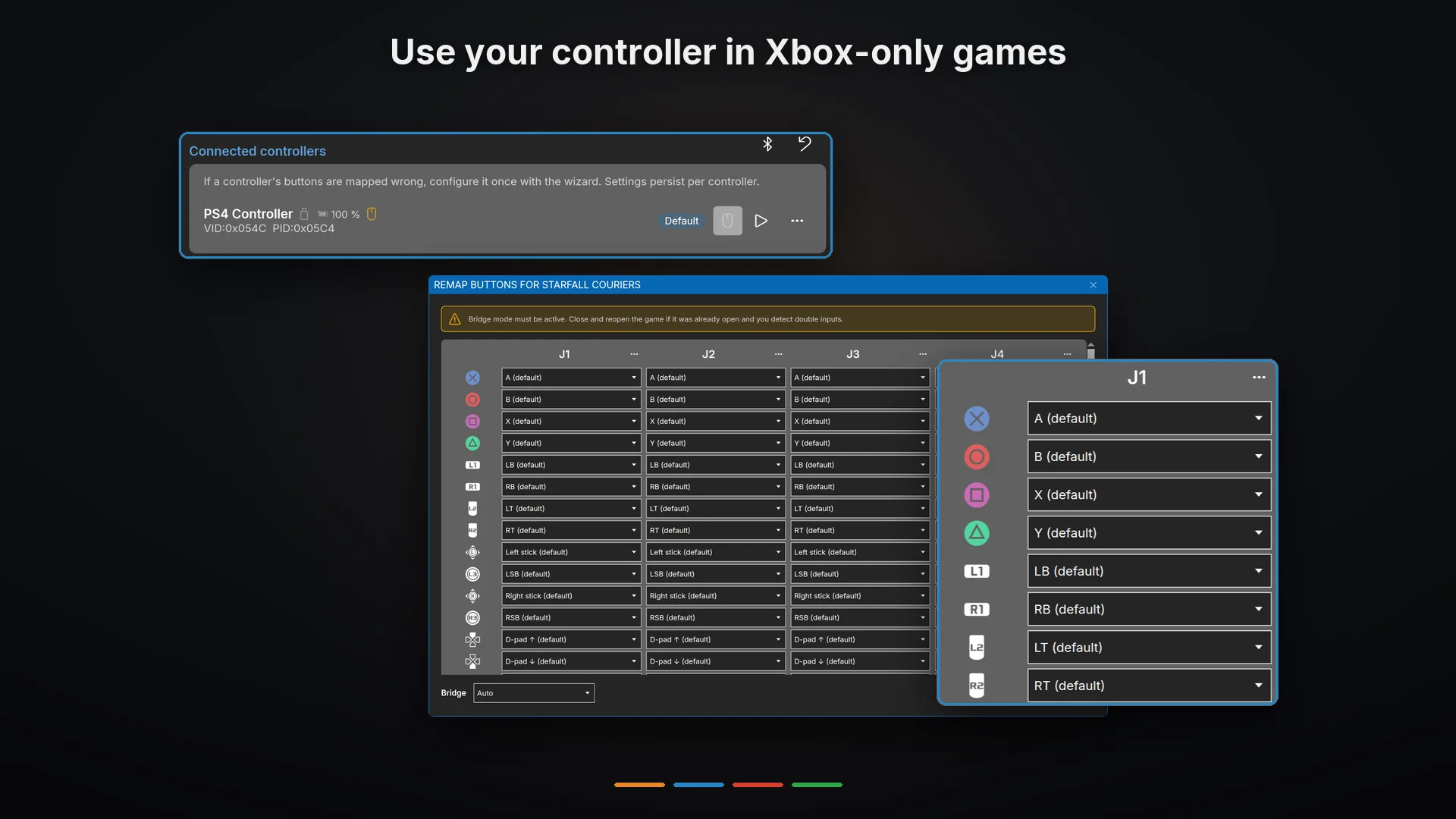
Your controller in Xbox-only games
Many games only recognize Xbox controllers. Couchpit makes yours look like one, so the game reads it.
- DualSense, DualShock 4, Switch Pro, Switch 2 Pro, Joy-Con, NSO classics, Steam Controller 2, 8BitDo, GameSir and most other pads, by cable, Bluetooth or their own adapter.
- Covers Game Pass, the pads Steam does not handle and games that are not on Steam.
- Older games with no gamepad support get your buttons mapped to keys, remembered per game.
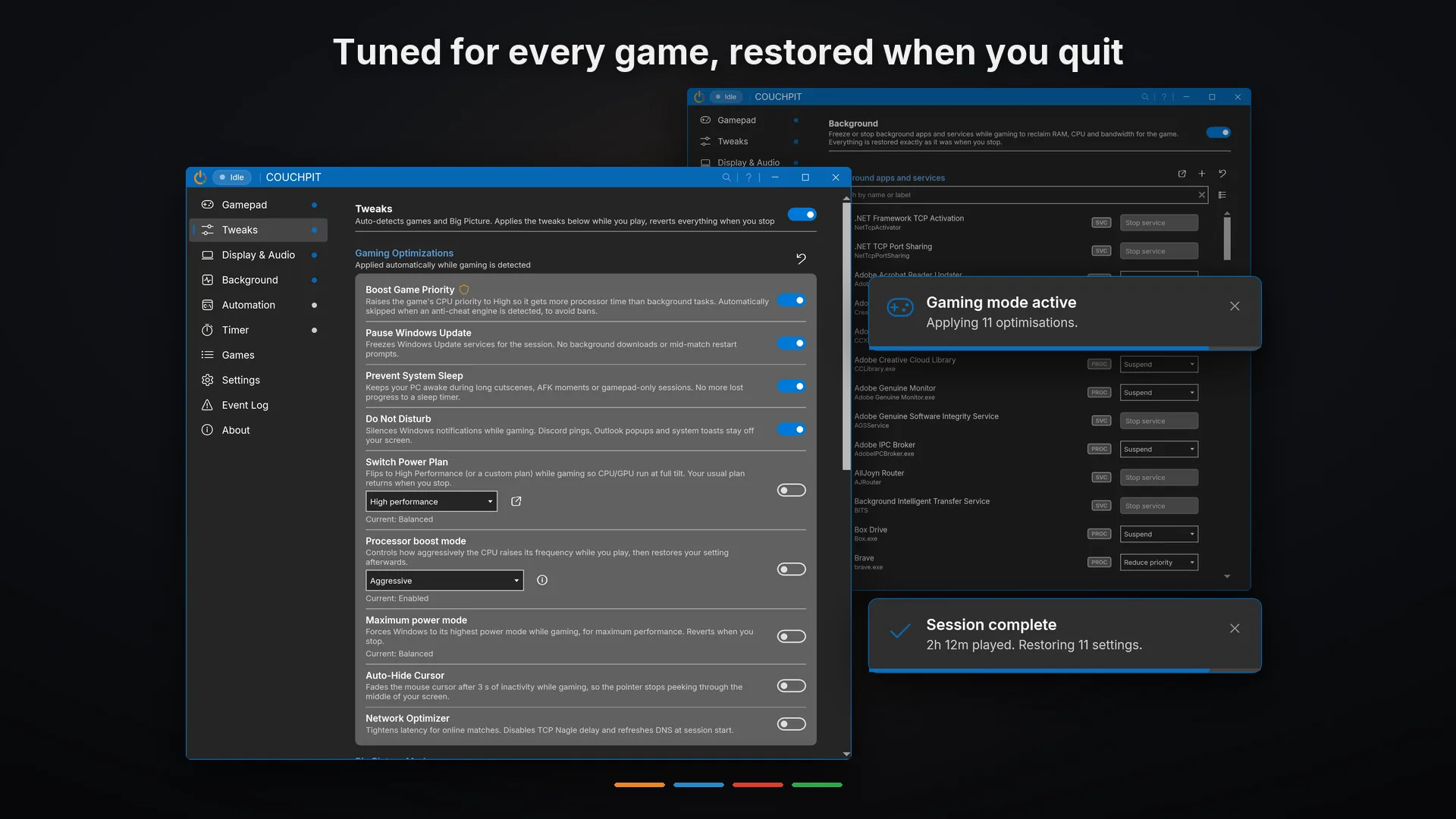
Set up when you play, restored when you quit
Couchpit prepares the PC for the session and puts everything back when you are done. Nothing gets closed.
- Notifications muted, Windows Update paused, the PC and the screen kept awake, the game's priority raised.
- OneDrive, Dropbox and 70 more apps paused; Chrome, Windows Search and 35 more at low priority.
- If the app crashes or Windows closes it mid-session, the next launch undoes every change.
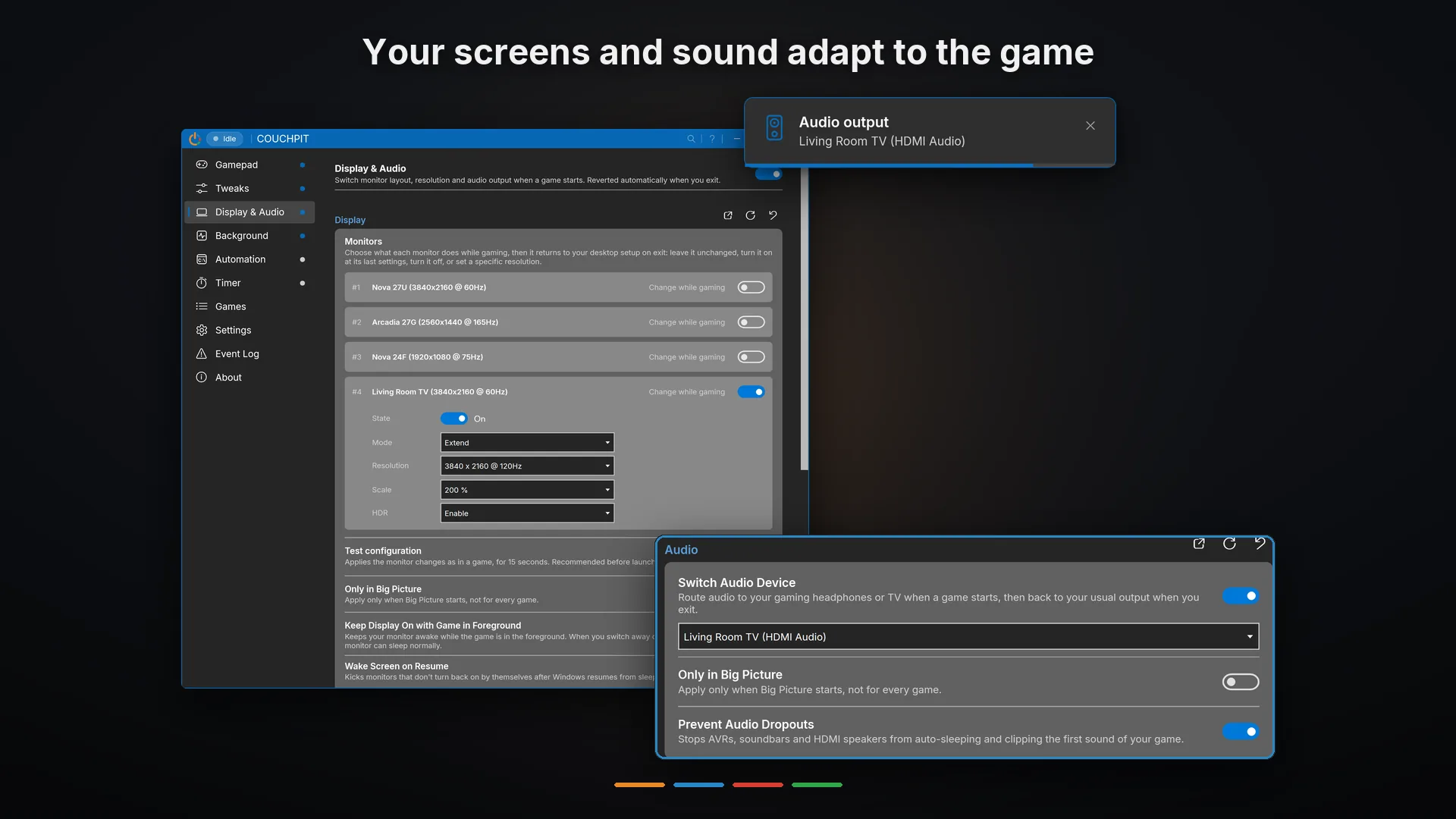
Your screens and sound adapt to the game
Decide what each screen does while you play, and where the sound goes.
- The TV turns on and the desk monitors turn off, and a screen changes resolution, scale or HDR only for the session.
- New in 1.5Pick the main screen while you play, the one Big Picture opens on and the one your games go to.
- The sound moves to the TV or soundbar, and the audio link stays awake so no cutscene starts cut.
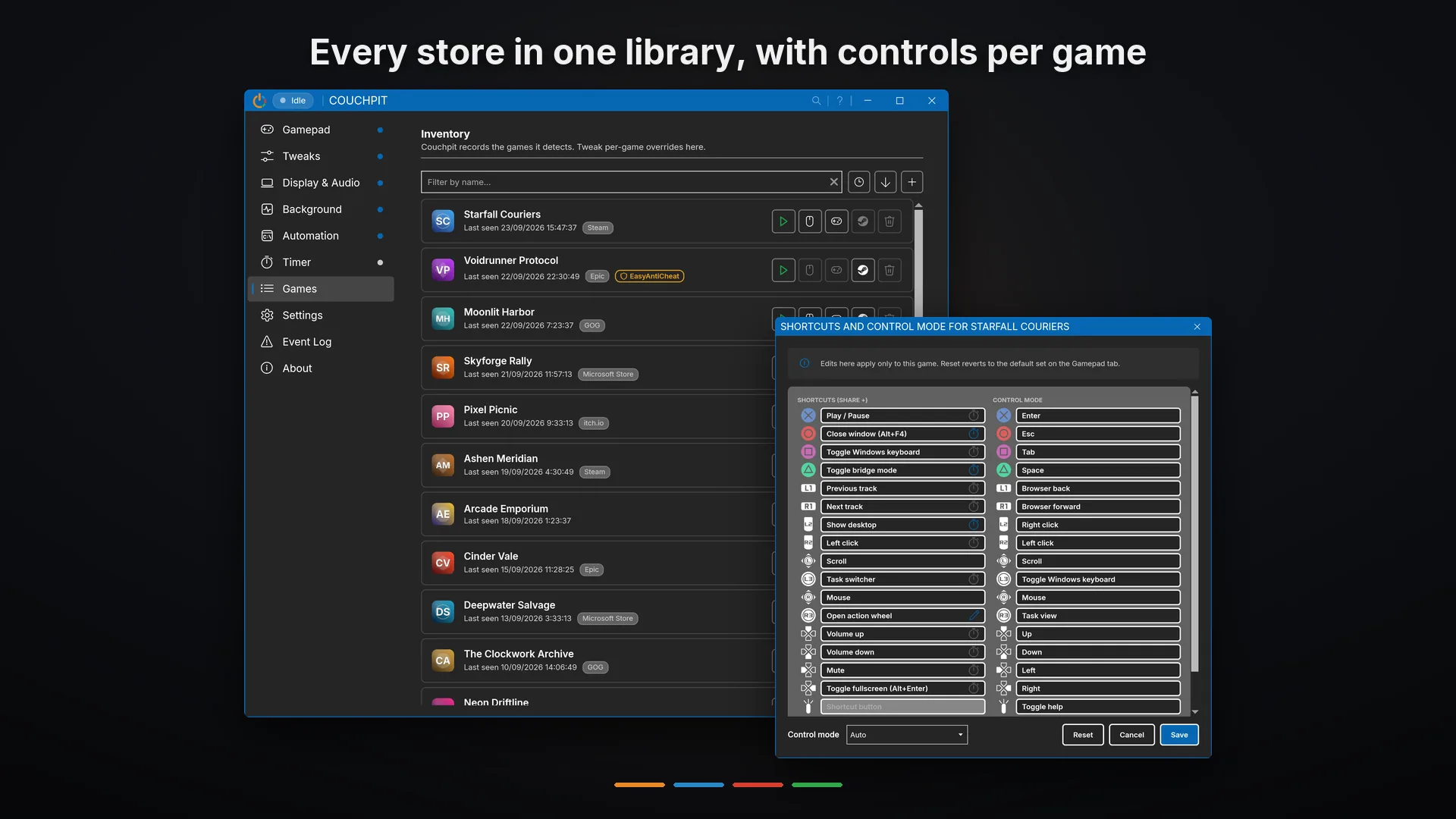
Every store in one library
Couchpit finds your games from Steam, Epic, GOG, itch.io, the Microsoft Store and more, and remembers each one.
- Launch any of them from the Games tab.
- Give a game its own shortcuts, control mode and bridge setting.
- Games with anti-cheat are marked, and Couchpit steps back on them by itself.
And the rest
Several controllers, one couch
Any pad takes the desktop with Back+Start, and the one that had it takes it back the same way. Make Home your shortcut button, or turn shortcuts off and every button goes to your games.
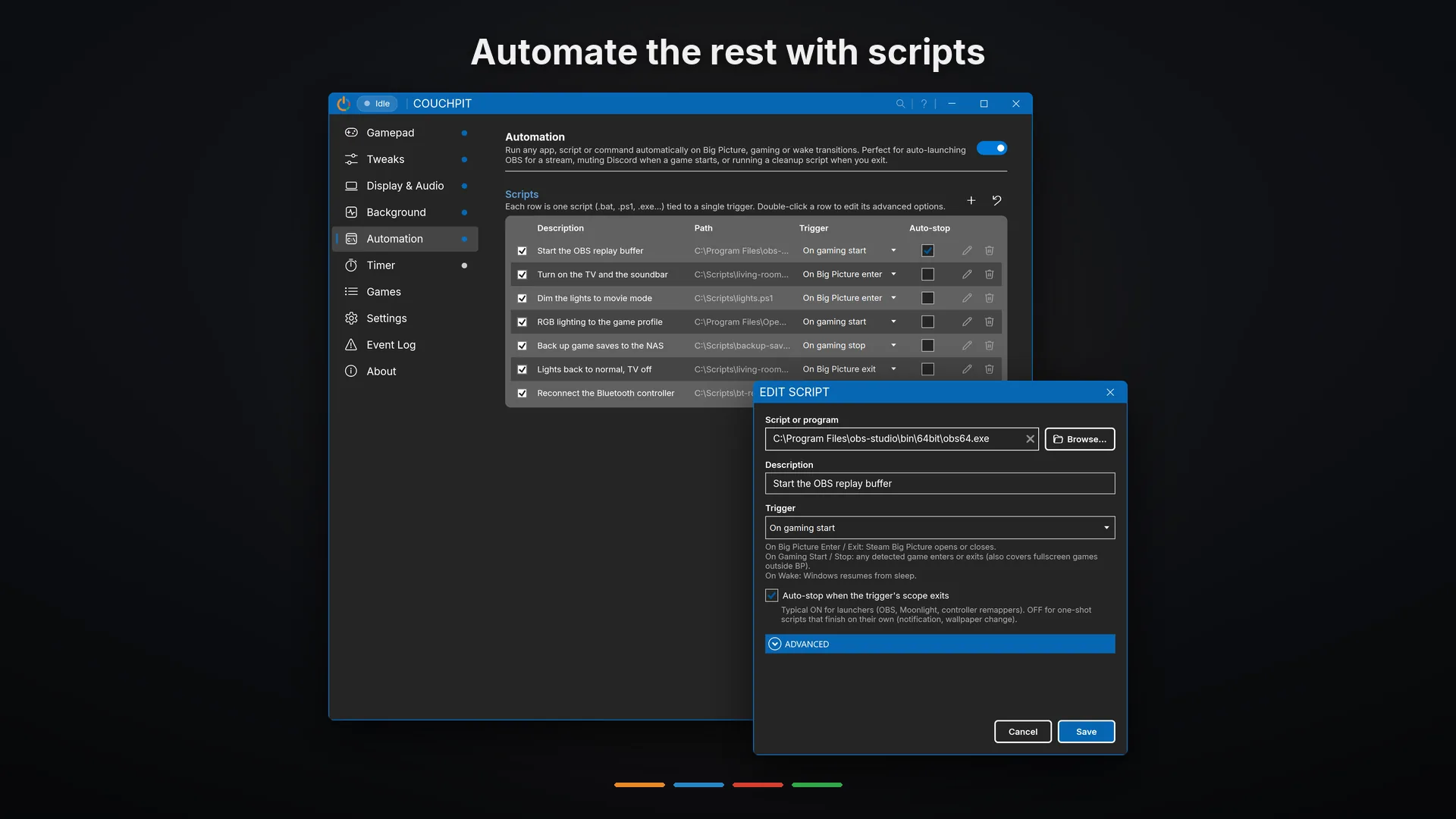
Scripts at every step
Run your own scripts when Couchpit opens or closes, a session starts or ends, a game gains or loses focus, or Big Picture opens or closes. See the Automation tab.
FPS counter and ReShade
A combo shows the RivaTuner or MSI Afterburner overlay without pausing the game, and the pad drives the ReShade menu.
Big Picture polish
Optional: open Big Picture when the PC starts, keep it from ending up behind a game, keep borderless windows on screen, or hide the Windows desktop during the session.
Stays awake
No sleep or screensaver while you play, so an idle menu never drops you to the lock screen. The mouse pointer can hide while a game is in front.
Countdown timer
Ends in sleep, shutdown or a script of your choice: leave Steam downloading overnight and shut down after. The tray icon shows the time left.
Who Couchpit is for
If you have ever sighed at the thought of starting a gaming session on a Windows PC, Couchpit was built for you.
The couch PC gamer
Your tower or gaming laptop is hooked up to the TV (or you wish it were) and you want to stop wrestling with Windows every time you sit down. Whether you came from a Steam Deck or your living-room rig has always been your main machine, the goal is the same: press play, Couchpit handles the chores.
New to PC gaming
The PC gives you more horsepower than you ever had, but the friction of getting into a game kills the impulse to play. You miss pressing one button and being in the game. Couchpit gets you closer to that: press play, less to manage.
The accessibility-first player
If a keyboard is awkward for you, gamepad-as-desktop is not a novelty, it is how you use Windows. Full cursor, click, drag and shortcuts from any controller, configurable per game.
Silent and honest
Couchpit is a thin, focused helper. It sits between you and Windows while you play. Nothing more.
About Couchpit
Built by Gameeze, an independent software studio focused on the gaming experience around your PC, not just on it.
How we ship Couchpit
Built for Windows 10 and 11. One-time purchase on Steam: install once, Steam keeps it updated, reinstall on any PC where you sign in. No installer files to track, no license keys, no version-check websites. No subscription, no upsell tiers.
Localized from day one
15 languages, switchable live without a restart. The app follows your Windows language out of the box. We treat localization as a baseline, not a marketing add-on.
Direct support
Email support@gameeze.net for bugs, feature requests or feedback. The address routes to a human at the studio, not a ticket black hole.
Frequently asked
Is Couchpit a game launcher?
No. Couchpit does not manage your library. Steam already does that. Couchpit helps during the gaming session, from the moment you press play until you close the game.
How do I get updates? What about a new PC?
Steam handles it. Buy Couchpit once and it stays updated automatically. Reinstall on any PC where you sign in to Steam, one click, always the latest version. No installer files to track, no license keys buried in old emails, no "check for updates" buttons.
Does it work without Steam running?
Yes. Big Picture needs Steam, but Couchpit also detects any fullscreen game on its own, whether it comes from Epic, GOG, itch.io, Xbox / Game Pass or anything else you have installed. The Games tab finds them all automatically.
Does Couchpit connect to the internet?
Only for a few things, and never to send your data anywhere. It checks with Steam that you own it, it downloads the public anti-cheat and controller databases it uses to recognize games and pads, and it can check on NVIDIA's, AMD's or Intel's website whether your graphics driver is up to date. The database updates and the driver check run when your PC starts and can be turned off in the app. No telemetry, no analytics, no accounts. The privacy policy has the details.
Can I use Couchpit without a gamepad?
Yes. Sound and screen switching, background-app pausing, notification muting, timers and automation all work without a controller. Desktop control and the controller bridge are gamepad features, but the rest of the app is fully useful with mouse and keyboard.
Will anti-cheat flag it?
Couchpit does not change your games, does not run code inside them and does not hook into how they draw. Its notices are regular windows that float over your screen, not in-game overlays. It pauses desktop control and the controller bridge by itself when it detects an active anti-cheat (Vanguard, BattlEye, EasyAntiCheat, FACEIT), and asks for your permission before installing the kernel-level controller filter.
Single-player games, launchers and desktop use carry no meaningful risk: that is the use it is built for. In online games with kernel-level anti-cheat we can't guarantee compatibility, because some may flag external tools or the bridge drivers. Use in those cases is at your discretion.
My controller is not an Xbox controller. Will games work?
Yes. Couchpit's controller bridge makes your DualSense, DualShock 4, Switch Pro, Switch 2 Pro, Joy-Con, NSO classics, Steam Controller 2, 8BitDo, GameSir and other gamepads appear to games as an Xbox controller, so games that only recognize Xbox pads read them like any Xbox one. For Steam games, Steam keeps working as it normally does; the bridge focuses on the games Steam doesn't reach.
Will Couchpit nag me with admin prompts every time?
No. Couchpit asks for admin permission once, during setup, and then starts silently in the background. The features that need admin rights keep working from then on, with no prompt each time you start the app.
What happens if it crashes mid-session?
Every change Couchpit makes is recorded before it's applied. If the app crashes or Windows closes it, the next launch puts everything back the way it was.
I have a Steam Deck. Do I need this?
On the Deck itself, no. SteamOS is already built for the couch. Couchpit is for the Windows machines you also own (a desktop, a gaming laptop) where you want a similar low-friction session.
Ready to play, not prep?
Couchpit is on Steam for $6.99. Windows 10 and 11. One-time purchase. No subscription. No tracking. 15 languages.